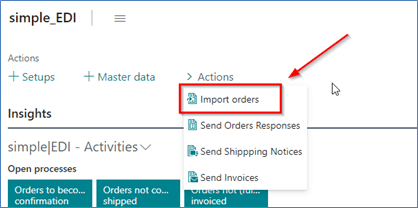
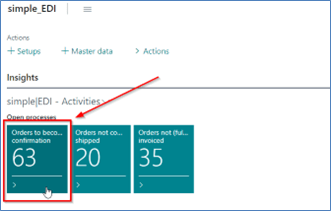
If you’ve prepared your data for the incoming and outgoing transactions, you can import the first sales orders in your system. Depending to your setup, this is done via job queue or manually. The manually import can be called from the role center:
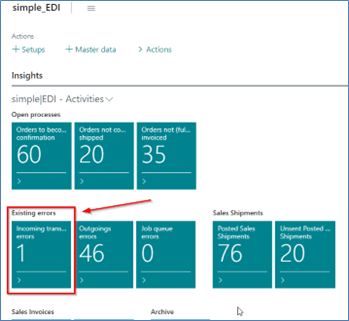
If the import of one or more transaction(s) was not successful, you can see an error entry in your role centre:
We recommend to switch to the Procuros portal to see, which error has occurred. There you’re also able to send this transaction again to your Business Central and to run the import-function once again.
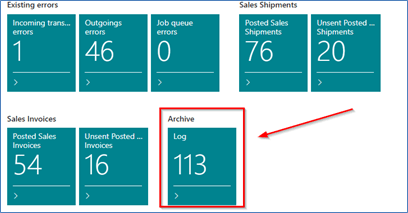
If you want to see the entire log entries in your system, you can open the log archive:
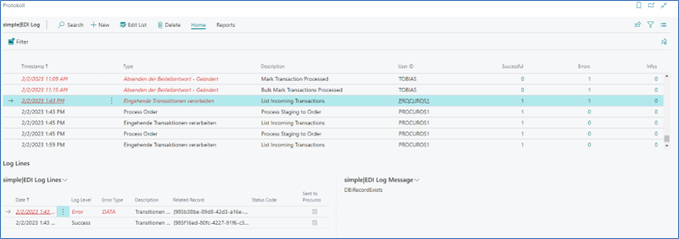
Here you can also find the reasons for the errors and if these messages have been transmitted to Procuros:
You can use positive or negative invoice discounts on header level and also line discounts. When you include new lines for charges, please remind that they will be transmitted to Procuros in the “modification header”.
You can’t combine item charges and invoice discounts, because this discount also decreases the charge – that can’t be displayed in the Procuros Hub.
3.3 Accept or decline new orders by using the Order response options
To find orders that are initialized from Procuros, you can use the following call in your role centre:
In this list view, you will only find sales orders that have been transmitted successfully and error-free. This means, that the following records were successfully found in your system:
Customer (sale-to, bill-to customer) via GLN
Shipping address via GLN (if it differs from the sale-to customer GLN)
Item(s) via GTIN
units of measure(s) (in the unit of measure list and the mapping table, see chapter 6)
It depends on your setup (see chapter 2.2), whether the unit price is taken from Procuros or from your data in BC. If address identifiers are transmitted from Procuros, there’re not been pushed into the sales order document. As in “non-Procuros sales orders”, the address data of your BC are taken.
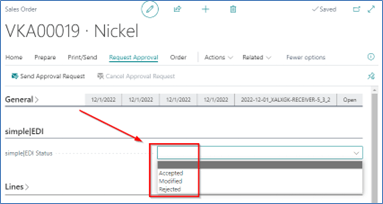
After importing the orders, you can use a standard-approval workflow for requesting and releasing the document. If you don’t have activated an approval workflow, the document is automatically released after changing the simple|EDI status field:
Therefore, you have the following options:
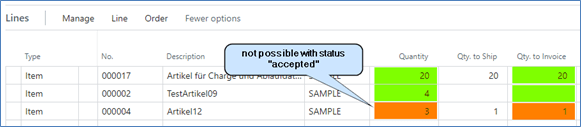
Accepted: If you don’t have any changes e.g. adding items, changing the quantity or delivery date, you can mark this order as accepted. Each line (or all lines) of the sales order you want to ship and invoice at a whole.
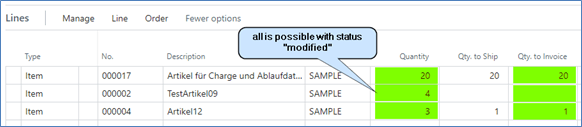
Modified, if you have changed the order, mark it as “modified”. So you are able to ship and invoice partly, if you want.
Rejected, if you don’t want to process this order, mark it in that way. If you have set an instant response to Procuros, selecting this option will delete the document immediately. If you transmit the order response manually, the order will be deleted after successful transmission.
Depending of your setup, this status will be sent to Procuros as the order response immediately after entering the status or manually.
You may get an error message when you try to select one of these options. This is because the following mandatory fields are checked, when the EDI status is changed:
The VAT ID of the bill-to customer is not empty
The customer and his ship-to-address and if you need “bill-to customer” are enabled in the simple|EDI business relation table
Name, Address, City, Post code, contact name, and region code are filled (for sale-to, ship-to and bill-to)
According to the standard functionalities you are able to delete the sales order until a shipment is posted. The filled “simple|EDI status field” does not prevent deletion.
Please note, that it is not possible to change the “simple|EDI status” afterwards. Also a reopending of this document is (in contrast to standard funcionalities) not possible, if this status field is set.
You are able to use almost all the functions and possibilities of the standard BC for released documents. The simple|EDI status “accepted” or “modified” is a prerequisition for posting shipments and/or invoices, regardless of whether the order response has to be sent via Procuros or not. This is because some mandatory fields cannot be edited afterwards.
Please remember the last chapter:
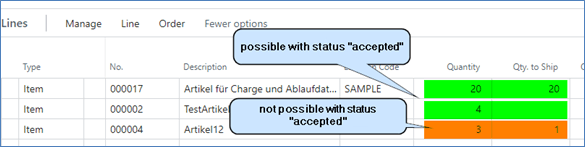
The sales order has the simple|EDI status “accepted”: Only complete shipments are allowed for an order line. Therefore, the “quantity to ship” in each line has to be eighter zero or equal to the original quantity:
The second line cannot be processed in that way.
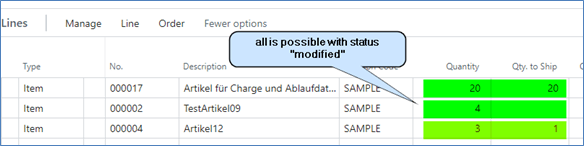
The sales order has the simple|EDI status “modified”: it is possible to post the shipment fully or partly:
If you don’t plan to send an order response to Procuros, we recommend the option “modified” to be more flexible.
Please note, that it is not possible to select the option “Ship and invoice” if shipments and/or invoices are to be transferred via API. If the transmission of shipments is enabled for the current customer, a successful transmittion of the shipping notice is required to post invoices. This is to avoid unrecoverable error messages and failed transmissions.
According to the shipment, the “order-response decision” influences the possibilies to post an invoice.
We currently do not support the possibility to send a solitary sales invoice to Procuros via API. So you can’t use the “get shipment Lines…”-function to separate an invoice from its order.
Please note, that it is not possible to select the option “Ship and invoice” if shipments and/or invoices are to be transferred via API. If the transmission of shipments is enabled for the current customer, a successful transmittion of the shipping notice is required to post invoices. This is to avoid unrecoverable error messages and failed transmissions.